What Is a 3MF File? What's Inside, How to Open One, and When You Need the STL
A download just arrived as a .3mf and you're not sure what to do with it. Here is the plain-English answer, with numbers from one of our own files.
You bought or downloaded a 3D print file and it arrived as a .3mf, not the STL you expected. Good news: a 3MF is usually the easier file to print. Here is what it is, what's packed inside one, how to open it on any computer, and the few times you'd still want the STL.
What is a 3MF file?
3MF stands for 3D Manufacturing Format. It's a file type for 3D printing that was designed to replace STL, the format printers have used since the 1980s. A group of companies including Microsoft, Autodesk, HP and Dassault Systèmes launched the 3MF Consortium in 2015 to create it, with Microsoft donating its early format work as the starting point. Today the consortium has more than 35 members, and almost every modern slicer can open a 3MF.
The difference that matters to you: an STL describes only the outside surface of an object. A 3MF can describe the object and the job of printing it. That's why a well-made 3MF opens with the parts already on the plate, the colors already picked and the settings already chosen.
What's inside a 3MF file? A real example
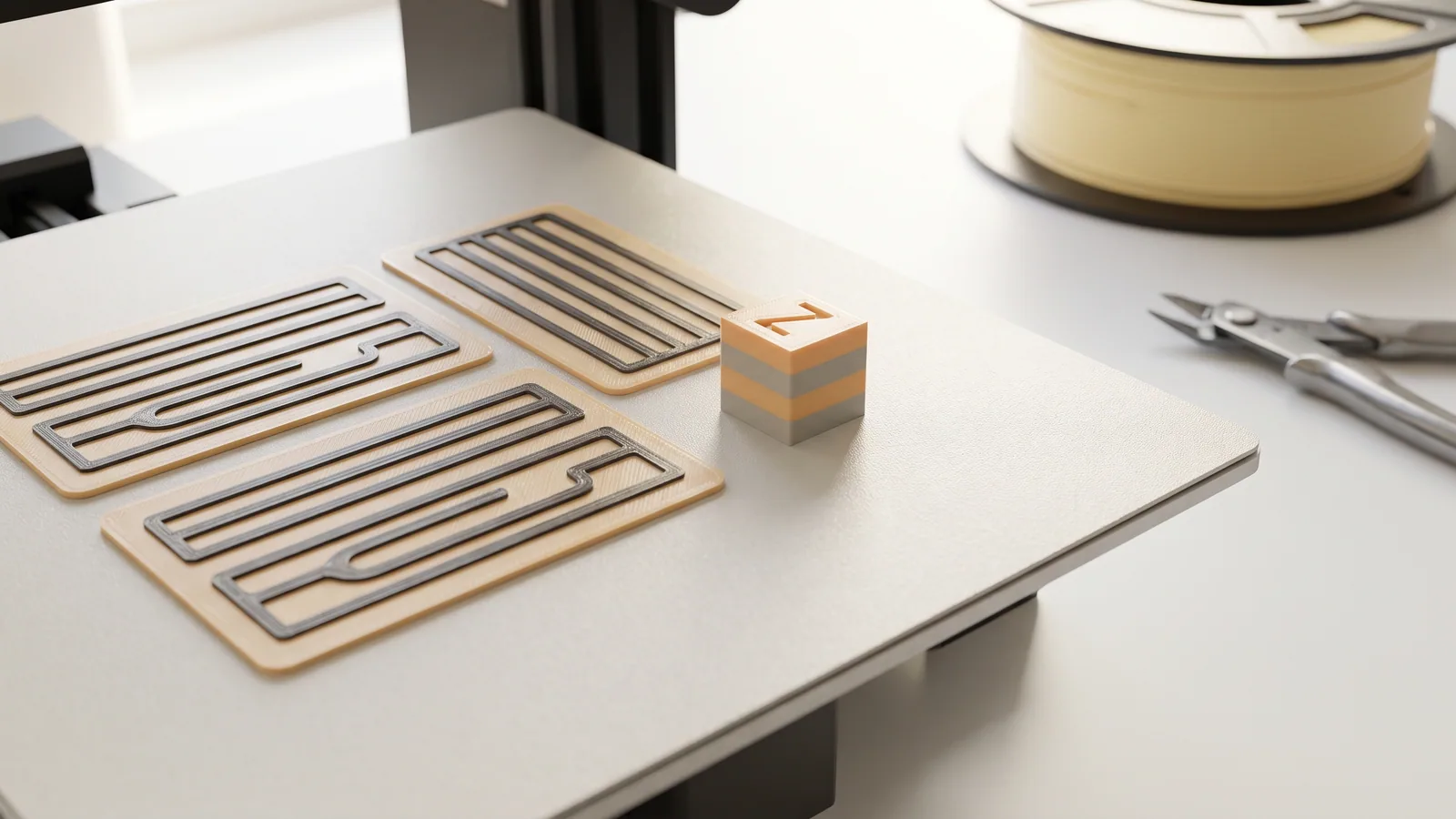
Here is one of our own files, so you can see real numbers rather than a list of features. It's the Pumpkin Patch panel from our Harvest Lantern Panels: a flat 90 × 120 mm panel that glows when it's lit, with black artwork raised on a light backing. (The whole set, and three other fall designs, are in our Thanksgiving 3D prints guide.)
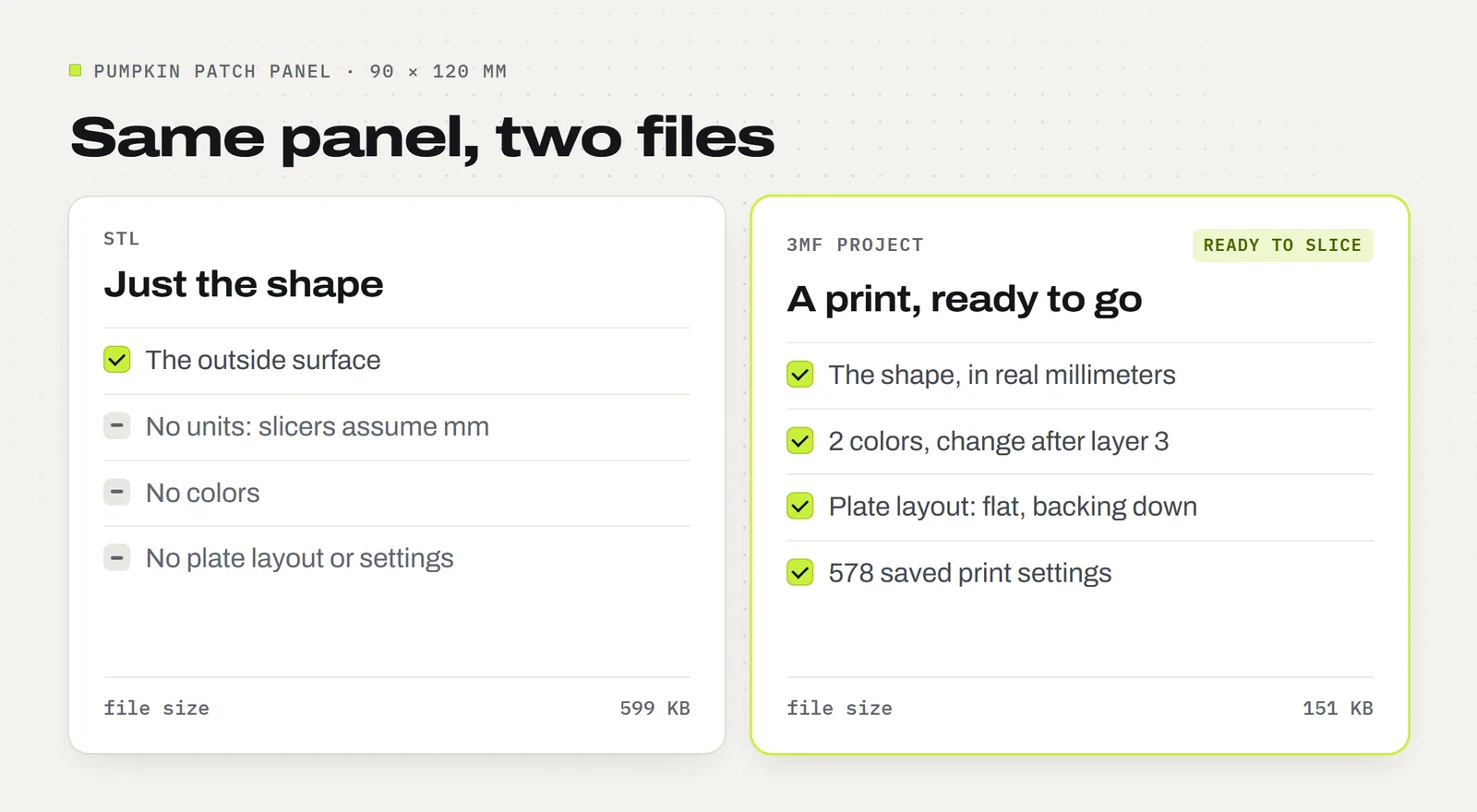
The 3MF project for that one panel holds:
- The shape, measured in real millimeters, so it opens at the right size.
- Two filaments assigned: a light color for the backing and black for the artwork, with the change after the third layer already set.
- The plate layout: the panel lying flat, backing down, in the right spot.
- 578 saved print settings for a Bambu Lab P2S, from the 0.2 mm layer height to 3 walls, 15% infill and supports turned off.
The whole thing is 151 KB. The STL of the same panel is 599 KB, about four times bigger, and holds only the shape: no colors, no layout, no settings. A 3MF is smaller because it's a compressed package, like a zipped folder, with the shape and the settings stored as separate files inside.
One thing a 3MF is not: it isn't a guarantee that the settings suit your printer. Settings are saved for the printer the designer used. If yours is different, you still get the shape, the parts and usually the colors, but you'll pick your own printer profile.
How to open a 3MF file
You don't need to buy anything. Every app below is free. Which one to use depends on your printer, and on whether you want to print the file or just look at it.
| App | Cost | Opens the shape | Keeps a Bambu project's settings |
|---|---|---|---|
| Bambu Studio | Free | Yes | Yes, plates, colors and settings |
| OrcaSlicer | Free | Yes | Mostly; it is built on Bambu Studio, so check the printer profile |
| PrusaSlicer | Free | Yes | No, it uses its own settings |
| UltiMaker Cura | Free | Yes | No, it uses its own settings |
| 3dviewer.net | Free, in a browser | Yes, to look at | No, it only displays the model |
On Windows, the old 3D Viewer app used to open 3MF files with a double-click. Microsoft retired it and removed it from the Microsoft Store in July 2026, so on a new computer use a slicer or a browser viewer instead. On a Mac, the same free slicers work.
To open the file, start the slicer and drag the 3MF onto its window, or use Open Project in the File menu. In Bambu Studio that's all there is to it: the plate appears ready to slice.
"Open as project" or "import geometry only"?
If you already have something open in Bambu Studio and you drag in a 3MF, it asks what you want: open the file as a project, or import the geometry only. The exact wording changes a little between versions, but the choice is always the same.
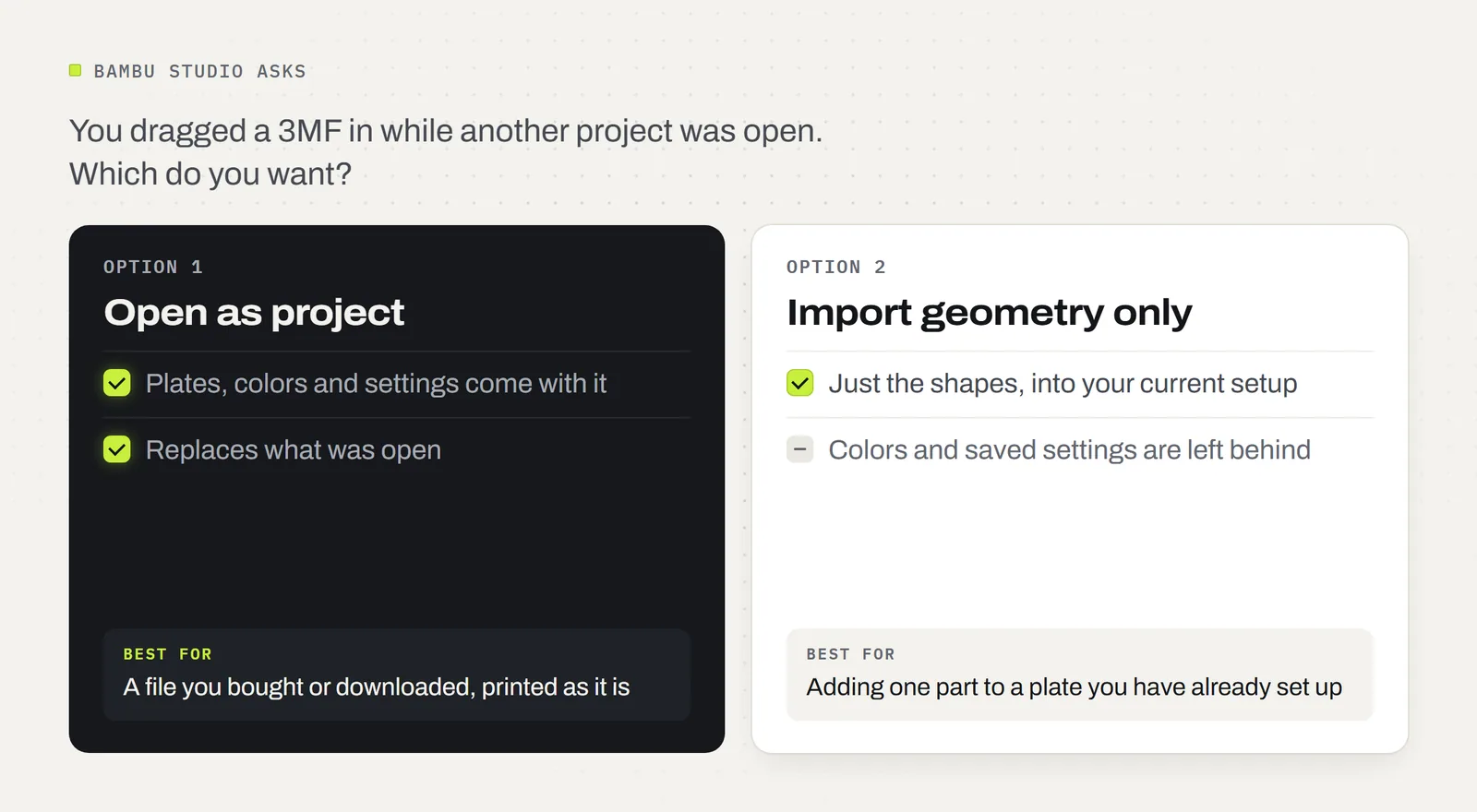
- Open as project brings everything: the plates, the colors and the saved settings. It replaces what was open. Choose this for a file you bought or downloaded to print as it is.
- Import geometry only brings just the shapes into your current project and keeps your settings. The colors and filament choices are left behind. Choose this when you want to add one part to a plate you've already set up.
If you're not sure, close what's open first and then open the 3MF. You won't be asked, and you'll get the file exactly as the designer saved it. For the rest of the job, from picking your printer to pressing print, see Bambu Studio for beginners.
Does a 3MF file need to be sliced?
Yes. A printer doesn't read a 3MF project directly. It runs G-code, the layer-by-layer instructions a slicer writes. So the steps are always: open the 3MF, check the filament colors match what's loaded, press Slice, then send it to the printer or save it to a card.
You may also see files ending in .gcode.3mf. That's a project that has already been sliced for one specific printer. It can print straight away, but only on that printer model. A plain .3mf project is the flexible one: you slice it for whatever printer you have.
Before you print a 3MF: a 30-second check
A ready-made project saves you the setup, but it was saved on someone else's printer. These five checks catch nearly every surprise before it costs you filament.
- The printer. Look at the printer name at the top of the settings panel. If it isn't yours, switch to your printer and nozzle size before you slice.
- The colors. Each color in the project is a filament slot. Make sure each slot points to a spool you actually have loaded, in the color you want. The design will print in whatever is in that slot.
- The plate. Check the build plate type matches the plate on your printer, for example textured PEI. The wrong plate setting can change the first-layer temperature.
- The size. Leave the scale at 100%. Parts that fit together, like panels that slide into a frame, stop fitting if they're scaled.
- The preview. Press Slice, then drag the layer slider in the preview. You'll see where each color starts and roughly how long the print takes, before anything leaves the printer.
If all five look right, print it as it is. That's the whole point of a good 3MF: the designer already made the hundreds of small decisions, and you only check the five that depend on your setup.
Not on a Bambu Lab printer?
You have two easy options. Open the 3MF in your own slicer, then switch to your printer's profile: you keep the shapes and the plate layout, and your slicer supplies the settings. Or skip the 3MF and use the STL files, with the settings you already trust. For a side-by-side of the two formats, see STL vs 3MF: which to print.
Multicolor designs are the one thing to check. If the colors change within a layer, the design needs a multi-material system such as Bambu's AMS. Without one, print it in a single color from the STL. Designs where the color changes between layers, like the lantern panels above, only need a filament change at the right height, which most printers can do with a pause.
Need an STL instead?
Most slicers can save a 3MF as an STL. Open it in Bambu Studio, OrcaSlicer or PrusaSlicer, then use the Export option in the File menu. You'll lose the colors, the layout and the settings, because an STL can't hold them. How to convert 3MF to STL has the exact menu steps for each slicer, and what to do about multicolor models.
Before you convert anything, check the download. Many designers, us included, already include the STL files next to the 3MF, so there's nothing to convert.
What's in every 3MF Labs download
Every 3MF Labs design downloads as one ZIP with four things in it:
- A 3MF project set up in Bambu Studio, with the plate, colors and settings saved.
- STL files of every part, for any other slicer.
- A START_HERE guide in plain English: what filament to use, how the parts go together, and the settings if you print from the STL.
- A license that lets you sell the physical prints you make. You can't share or sell the files themselves. The full license spells it out.
You can see every design, with the colors and plate count for each, on the models page.
Designs from this guide

Questions
What program opens a 3MF file?
Any modern slicer, all free: Bambu Studio, OrcaSlicer, PrusaSlicer and UltiMaker Cura. Bambu Studio keeps a Bambu project's plates, colors and settings; the others open the shapes and use their own settings. To just look at one, the free browser viewer at 3dviewer.net opens 3MF files without installing anything.
Can a 3D printer print a 3MF file directly?
Not a plain 3MF project. The printer runs G-code, so you open the 3MF in a slicer, press Slice and send the result to the printer. A file ending in .gcode.3mf has already been sliced for one printer model and can print straight away on that model only.
Does a 3MF file need to be sliced?
Yes. Open it in your slicer, check that the filament colors match what you have loaded, then slice. A good 3MF project has the hard part done already: the plate layout, the colors and the settings are saved, so slicing is usually one click.
Is a 3MF file the same as an STL?
No. Both hold the shape, but an STL holds only the shape, with no units, colors or settings. A 3MF can also hold the colors, the plate layout and the print settings, and it is usually smaller. Our STL vs 3MF guide compares them side by side.
How can I open a 3MF file online without installing anything?
Use a browser viewer such as 3dviewer.net, which is free and open source. Drag the 3MF onto the page to turn the model around and check it. A viewer is only for looking; to print, you still need a slicer.
Can I convert a 3MF to an STL?
Yes. Open the 3MF in Bambu Studio, OrcaSlicer or PrusaSlicer and use Export in the File menu to save it as an STL. You lose the colors, layout and settings, because STL can't store them. Check the download first: many designs already include the STL files.
Can Cura open 3MF files?
Yes. UltiMaker Cura opens 3MF files and loads the shapes. It doesn't use the print settings saved by another slicer such as Bambu Studio, so you pick your own printer profile and settings in Cura before slicing.
What is the difference between a 3MF file and G-code?
A 3MF describes what to print: the shapes, colors and settings. G-code is the list of moves the printer follows, layer by layer, and it is written by the slicer for one printer. You turn a 3MF into G-code by slicing it.
Sources
Filed under Files and formats